

Do you plan to take the TOPIK (Test of Proficiency in Korean) test in 2026? But how do you register and apply for it?
This article provides details on the TOPIK exam enrollment process for the upcoming Korean language test. The next test date is on the TOPIK schedule for 2026 page.
There are two ways candidates can apply for this exam, depending on their location: in South Korea or outside Korea.
Let’s explore all in detail.
Key Points to remember before applying online
Here are the vital things to recognize before applying and registering for the Korean TOPIK exam:
- First, you must decide which TOPIK version you wish to take for the next test: PBT (Paper-Based Offline Test) or IBT (Internet-Based Online Test). Then, pick a suitable level based on your current ability (TOPIK I or TOPIK II).
- Do you want to measure how well you speak? Then, you can opt for the Speaking Test for TOPIK. It is an independent exam that assesses your Korean speaking skills. You can select this test regardless of whether you choose TOPIK online IBT or offline PBT.
- Check the exam schedule and available test centers near you. Not all exams are available at every testing center; availability varies by country.
- According to the exam schedule, registration is only open for a few days or a week. In most big cities, seats fill quickly. There may be delays and technical issues during online sign-up. Be sure to register as soon as possible, within the first hour or day.
- If you face any problems, such as the website not loading or your payment not going through, don’t panic. Try refreshing the page or contacting the TOPIK support team for help.
How do you register for TOPIK in South Korea?
Registering for the upcoming TOPIK test in Korea is a nine-step process.
STEP 1: Create an account and log in
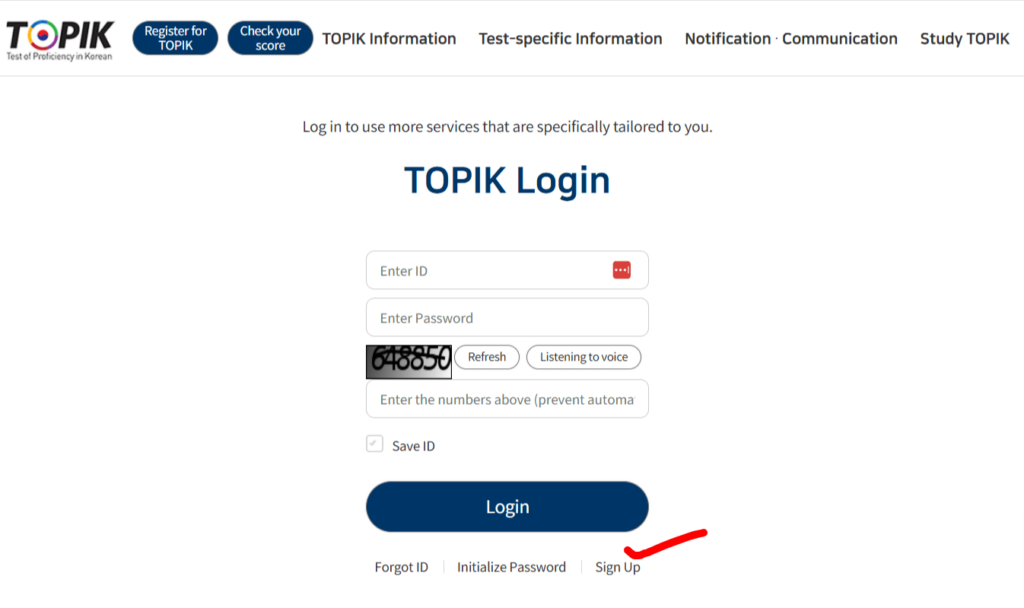
First, open the official TOPIK website, www.topik.go.kr. You can change the language to English or select another option from the provided list.
Then, you must “Sign Up” and create an account with your ID and password. Once you’ve done this, “Login.” You can access this LINK directly.
STEP 2: Register on the website
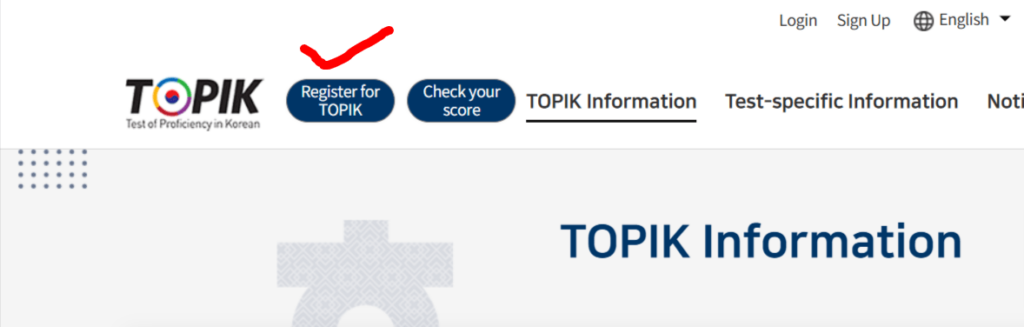
You can register by clicking “Register for TOPIK” in the top-left corner of the website. This button is active only during the application period.
You cannot apply outside the registration period; the register button will not be active.
STEP 3: Choose the TOPIK type & level
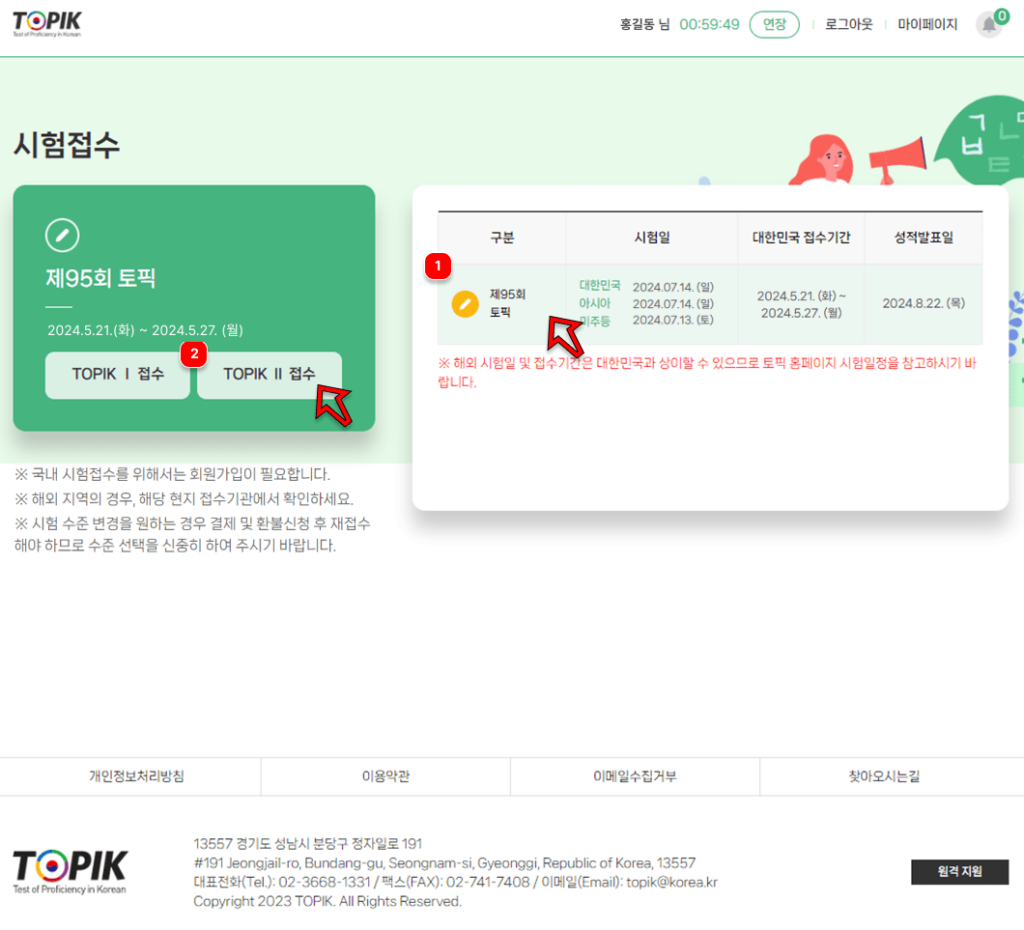
Choose one type of TOPIK: TOPIK PBT, TOPIK IBT, or TOPIK Speaking.
The speaking module is an independent exam that measures your Korean speaking skills. It is excellent for checking your Korean speaking. You can select this test regardless of whether you pick TOPIK offline PBT or online IBT.
Then choose a level: TOPIK I or TOPIK II.
STEP 4: Choose the TOPIK test center
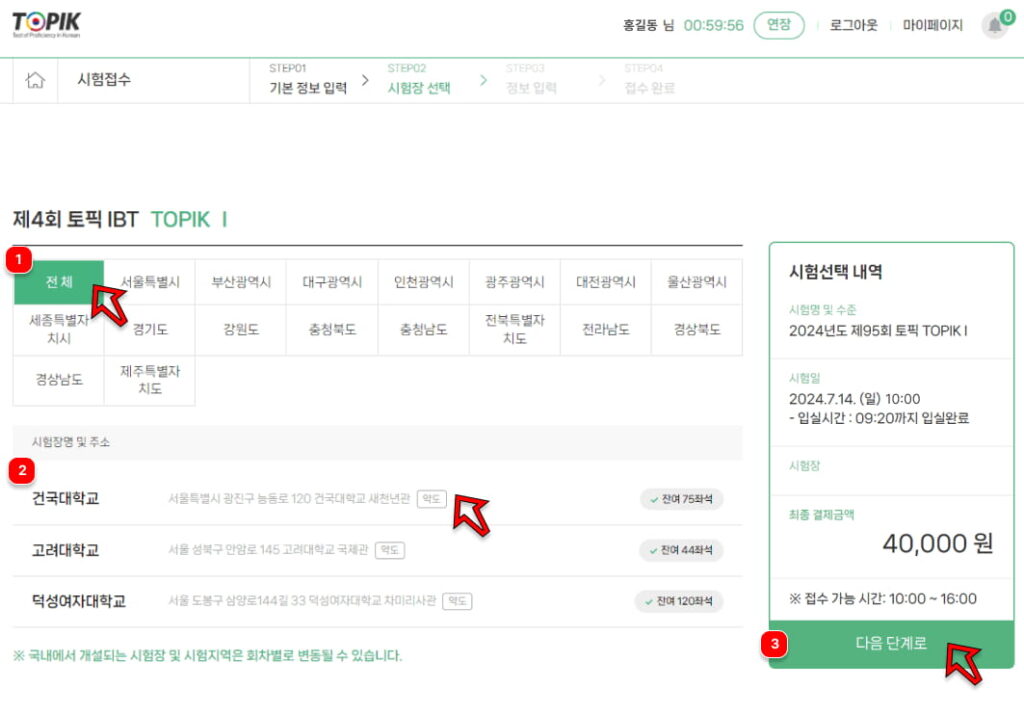
Next, select your preferred test center for the exam.
Pick a test center and check how many people have signed up. You can’t select a test center that’s already full.
Registering early secures your seat and gives you control over your language-learning journey. It’s an admirable step that ensures ample time to prepare and plan for the exam.
Then submit your application as soon as possible to secure your spot. The registration period will close once all seats are filled.
STEP 5: Enter your required information
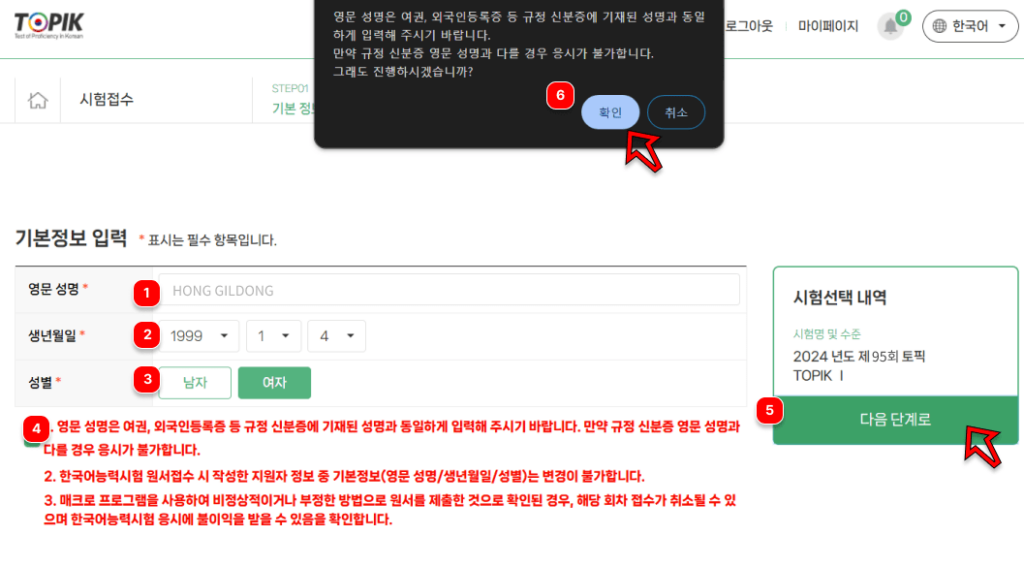
When you register, you’ll need to provide personal identification.
This includes your full name, which matches the name on your official ID. Also, add your gender, date of birth, and contact details.
STEP 6: Upload your photo
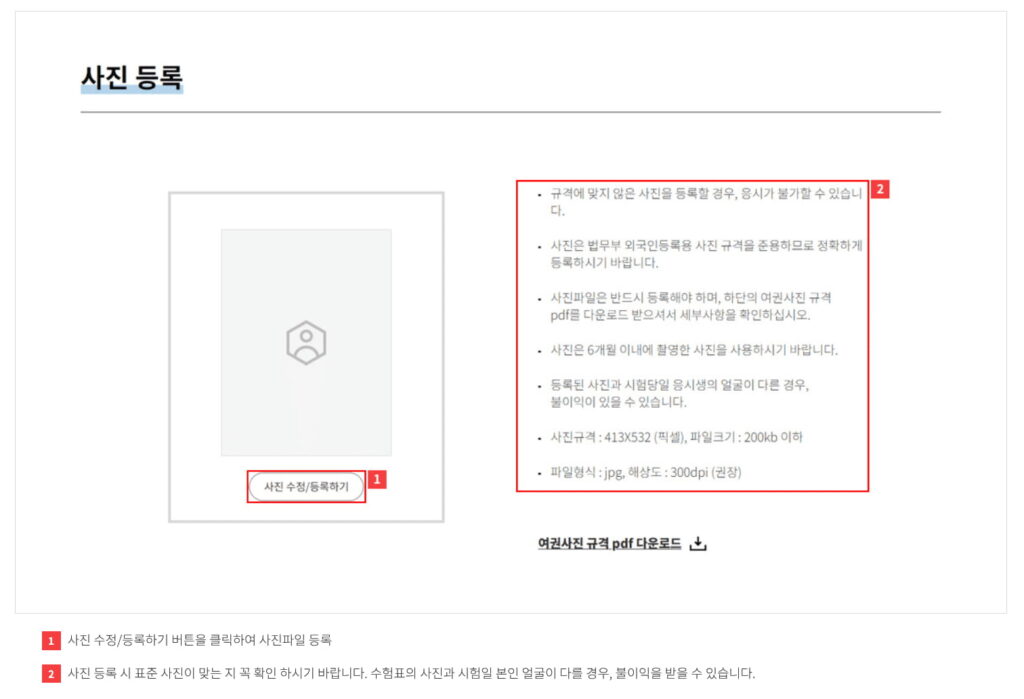
You also need to upload a photo in accordance with their guidelines. They require a passport-sized photo.
Before uploading your photo, confirm it meets the specific dimensions, size, and format conditions. Failure to meet the picture requirements may result in disqualification and application rejection.
STEP 7: Reconfirm/Modify all Information
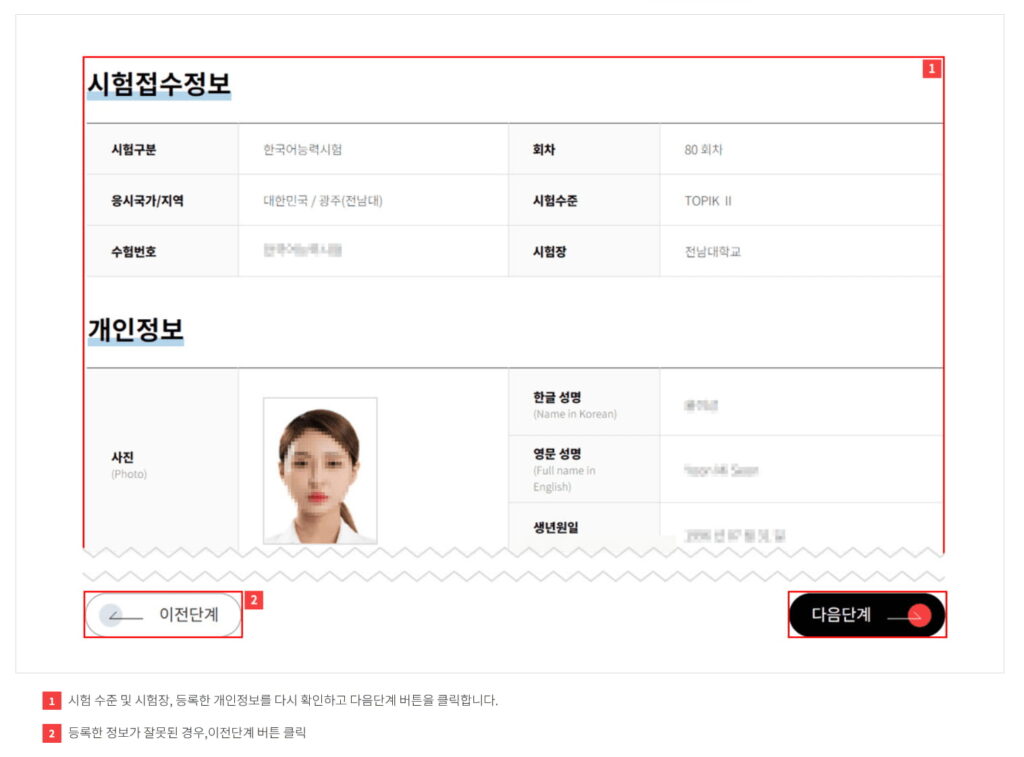
Before making your final payment, confirm your test level, center, and registration details. This step is a must: re-verify all details.
You can click the edit button to return to the previous page if any registered information is incorrect.
STEP 8: Pay the registration fee
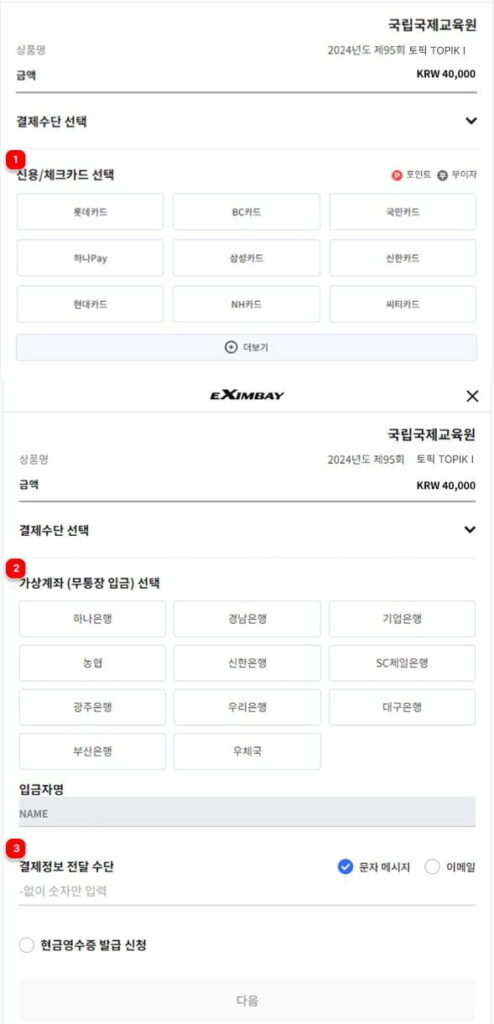
You can pay the registration fee by credit card or bank transfer. You must provide your refund information (virtual account details) if you pay by bank transfer.
It’s important to enter your account number correctly for bank transfers, as each account has a unique number.
If you need to cancel your registration, see the refund deadlines, policies, cancellation procedures, and applicable fee refunds. Canceling before a specific date usually results in a full or partial refund.
STEP 9: Print out and check the confirmation
Finally, you can complete the process.
Make sure your transaction and registration went through. Your registration information is available on the Registration Status page in My Page.
Be sure to print your confirmation enrollment or admission ticket. This document is required as proof of registration and can help resolve any issues that may arise on test day.
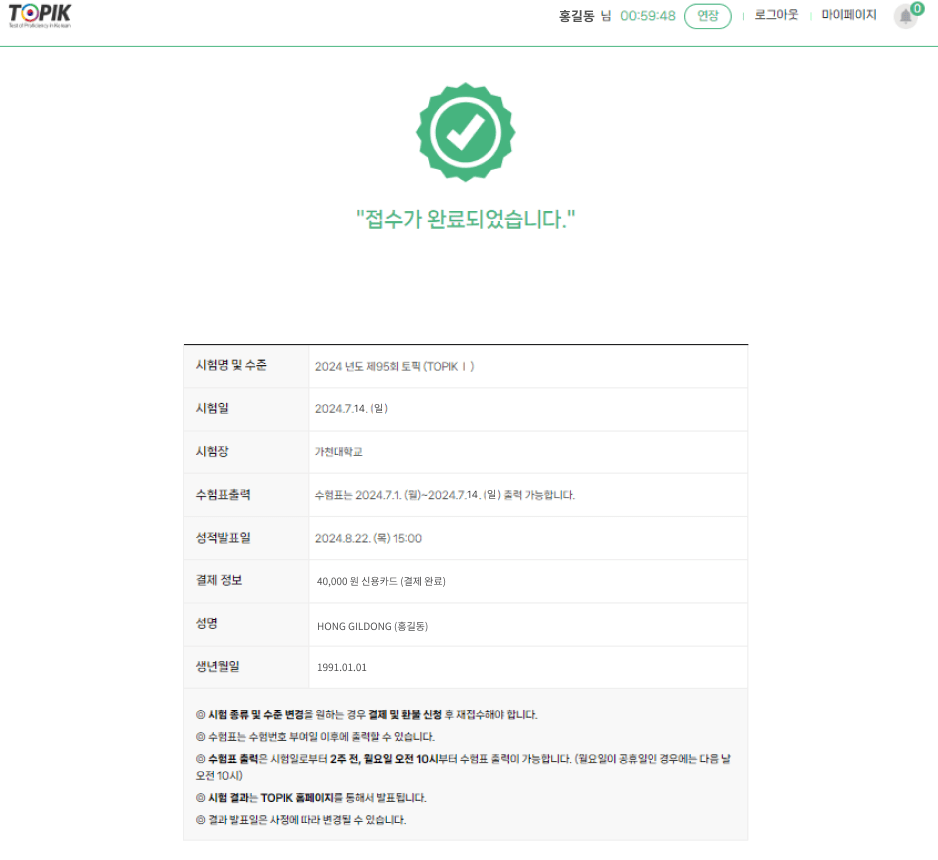
Without it, you may face difficulties during the exam, such as not being allowed to take the test.
Be up-to-date and prepare
For the most up-to-date information on announcements and changes, please visit the official TOPIK website (www.topik.go.kr) or your local testing center. This will help you feel confident and prepared for the exam, regardless of any updates.
If you cannot attend the test, understand the refund deadlines and policies. Also, review the exam-day rules and guidelines, including what you must carry.
While you wait, review the TOPIK test structure—reading, listening, speaking, and writing sections — for TOPIK I, II, and Speaking modules. The official TOPIK website provides previous exam papers for practice.
How do you register for TOPIK outside Korea?
If you intend to take the TOPIK 2026 in South Korea, you can easily register for the exam online through the official TOPIK website mentioned above.
But what if you live outside of Korea? The TOPIK registration process will be slightly different in that case.
First, check the available test centers and schedules in your area. Then, contact the nearest Korean embassy or consulate, the Korean Cultural Center, or any affiliated institutions in your country.
These organizations will guide and support you through the TOPIK test registration process. Before completing the enrollment steps, check the requirements, deadlines, available centers, and fees for your city and country.
How to register for TOPIK in India?

The Korean Cultural Center in New Delhi administers TOPIK tests in India, held at various locations. As of 2026, Delhi, Manipur, Pune, Chennai, and Bengaluru are options that may change at any time.
To register, complete the online form as soon as registration opens; seats are limited and fill up quickly. Prepare all necessary documents in advance.
After submitting the form, you’ll receive an email with payment instructions. You can pay only after receiving this confirmation email.
Once you upload proof of payment via the provided Google Form link, the organizing institution will confirm your payment. You will then receive your Hall ticket via email. Finally, you can take the test at the designated center for your chosen level on a specific date.
You can read the entire step-by-step process of how to register TOPIK in India.
Do you have any questions? Share in the comment section below.